Ecom Podcast
# 160 EASY Claude Cowork Setup (full beginner tutorial)
Summary
The Corey Ganim Show shares actionable Amazon selling tactics and market insights.
Full Content
# 160 EASY Claude Cowork Setup (full beginner tutorial)
Speaker 1:
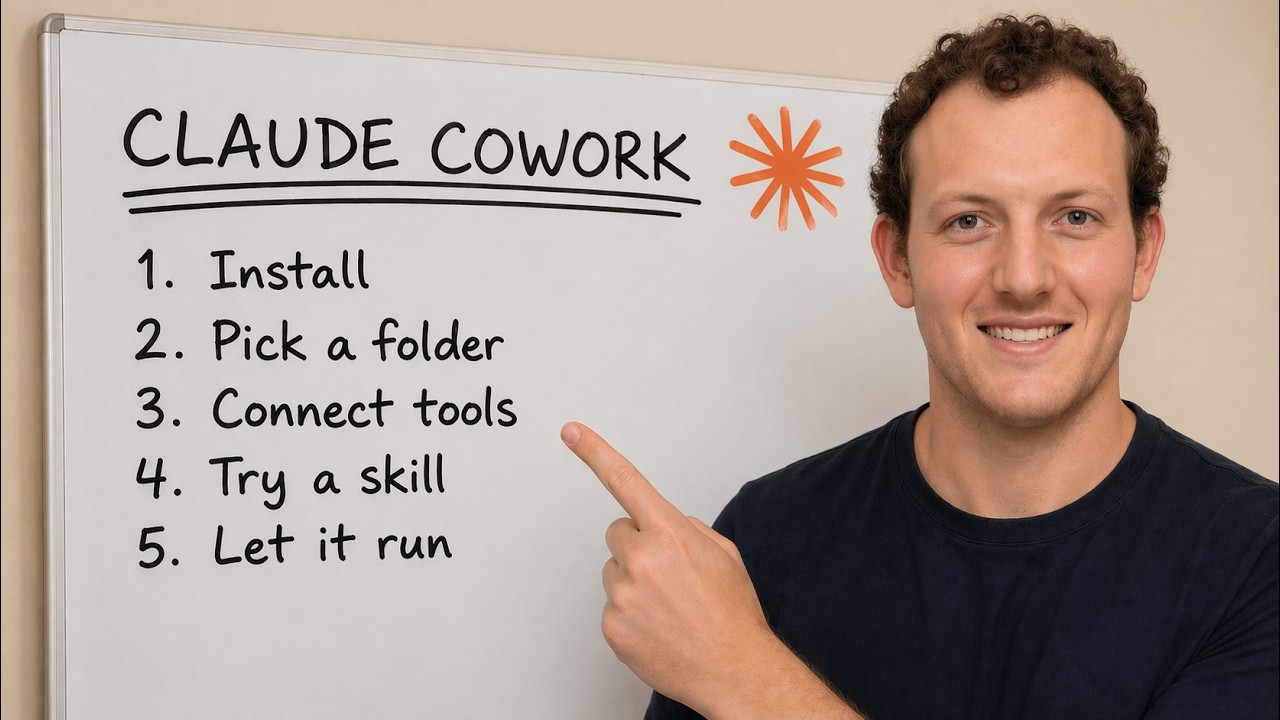
Claude Cowork is one of the most powerful agentic tools on the market, but I've literally never seen anybody set it up right. So in this episode, I'm going to show you the full beginner setup from scratch,
how to set up your workspace folders, how to connect your tools, and how to build the three most important context files that make Cowork actually understand Who you are and how you work.
And I've included a free plugin that you can steal that'll run the entire onboarding flow for you on autopilot. And if you stick around till the end, I'm going to show you the most critical step that everyone misses,
which is building your global instructions so that every Cowork session improves from then on out. I hope you enjoyed the episode. Okay, so the problem with Claude Cowork is that out of the box, it is a very dumb new employee.
That's essentially how it acts. So in order to get it to a point where it understands you and your business, you've got to create context files, you've got to connect it to your tools,
and you've got to set it up properly the same way you would onboard a new employee. So here's everything that we're going to create today. First and foremost, we are going to give it a workspace folder structure.
We're going to connect it to a real folder on our computer. Next, we're going to connect it to the tools that we're already using, whether it's Google Workspace, Notion, Asana, etc.
Then we're going to build three very specific context files. We're going to build an About Me document so that Claude knows everything about me. Next, we're going to build a brand voice profile, which tells Claude how we talk.
And then lastly, we're going to build a working style document, how I approach tasks, the way that I like my documents to look, etc. After that, we're going to generate global instructions,
which essentially tells Claude how to treat all of the context files as a whole. Then we're going to go through skills and plugins, schedule tasks,
and then we're going to have it conduct an optional security review to review everything that we put together and make sure that it looks good.
Now, all of this that we're doing here is made possible because of a plugin that I designed called Cowork Onboarding. So out of the box, if you didn't have this plugin,
you would have to literally go through step by step and know exactly what to ask Claude so that it does all of this for you. Luckily, we've made this plugin free and open source for you guys.
So if you want to download this Cowork Onboarding plugin, you can go at the link in the description or the show notes and download that completely for free.
The only thing that the Cowork Onboarding plugin that I'm giving you guys for free can't do, This plugin is essentially run you through a self-assessment, right? So that version of the plugin is only available to our community members.
So what the self-assessment does is after you go through the full onboarding, it will interview you to essentially audit your existing workflows to produce an impact versus effort matrix,
recommend exactly which skills you should build based on your specific workflows, and even build you these skill blueprints For those custom skills and those are only available to community members.
So let's go through and run this onboarding flow from scratch. So I'm already using Cowork. So it knows a little bit about me, but I'm going to go in and tell it,
essentially run this from scratch as if I have no tools, no connectors, nothing installed, and this is a brand new instance of Cowork. So let's do that and I'll come back once it's ready to go.
All right, so now that I've told it we want to start from scratch, it's basically saying if you're on a pro plan, you want to save Cowork for your most important work since it eats a lot more usage than regular Claude Chat.
And it's going to ask which workspace folder do we want to use for this session. So I'm going to pick a folder now. And then next, and this is important, it's going to ask which onboarding path I want to run.
So if you use our onboarding plugin, you can either opt for the full setup, which runs you through everything I discussed at the beginning of this video, or you can opt for a quick start setup,
which is only going to create a portion of those documents that we mentioned at the beginning. Now, for the sake of this video, I'm going to go through the full setup. It's not actually going to take 45 minutes.
Usually it's a lot quicker, but if you go through the full setup yourself, Set aside 45 minutes just in case. Now it's going to ask which folder would I like it to use,
so I'm going to choose the test folder that I created for this video and I'll be right back. So I selected a demo folder that I created for the sake of this video.
And now the important next step is it's going to take a peek at the folder to confirm that it's empty. And what it's asking me to do is it's actually asking for permission to search through that folder.
So that's one thing that's great about Claude Cowork is it does have guardrails built in. It can't just go rogue, start poking through your documents, poking through your files.
You're going to have to give it permission to do the things that it needs to do. Next, it's going to ask how structured do you want your workspace? Full structure, minimal, or custom? Let's do full structure, which is what it recommends.
How should Claude handle your workspace folders? And in this case, it's gonna ask me if I want it to have read-only access to my source folders,
read or write with confirmation, and then full read or write, which is not recommended for beginners. So I'm just gonna go with pretty much all of the recommended options during this onboarding session,
which is read-only source folders, which is what it's recommending. So now what Claude Cowork is saying is it's going to set up task tracking for the full onboarding so that we can track where we are in the process.
Now, one thing you'll notice about Claude Cowork, I'm actually going to move myself over here to the left. So that you can see it is in the top right, we have essentially a progress bar.
It's going over every task that we're gonna accomplish during this workflow, one through 10, starting at building workspace, next connect tools, context files, all the way to step 10, which is verifying the onboarding completeness.
Now, this is a cool part about Cowork because you can see exactly where it is in the workflow, where it is in the process, and you can kind of track its progress.
So now it's gonna ask me, because we're on to step one, which is connect your tools, it's gonna ask which platforms am I using regularly in my work. So it's asking, do I use Google Workspace, Notion, Slack, a CRM tool?
So just to keep things simple, let's just do Google Workspace for now. Now it's asking, is there a primary tool you work in more than any other within the Google ecosystem? So let's just say email for Gmail.
And then it's going to walk me through the steps of connecting Gmail and my Google Drive and my Google Calendar. Those are actually already connected because I didn't disconnect them just for the sake of this demo.
So it should most likely search through my connectors here, understand that it's already connected and skip to the next step. Which is fine because the process of connecting your tools is so simple.
All you do is literally log into the tool within Claude and then it's connected. So there's nothing really to show in that regard. So it's saying those three are already authenticated exactly like I said.
And then it's going to rerun the verification test prompts that the guide recommends just to confirm that they all work end to end. So it's going to do those three in parallel.
I've got to explicitly give it that permission and I'll come back once those tests are done. All right. So it tested to confirm that all the three connectors are working.
So it says Google Talenter is working, Google Drive is working and Gmail is working as well. And it even specified in a real fresh install workflow, you would have just clicked the three connector buttons in a pop-up,
gone through Google's authentication screen three times, and then you would be done. So that's how simple the process is for connecting your tools to Claude. Now next, it's going to have us start building out our context files,
which is step three in our progress bar here. So it's asking in one sentence, how would you describe what you do? Let's say in this case, creator slash content business.
How many active businesses or projects are taking up your time right now? So in this case, just one all in. And it even told us now that we're on capability to context files, it's going to produce three files from this particular step,
the About Me, the Brand Voice, and the Working Style, which is exactly what we want it to do. Now it's asking what is the business called and what does it actually do? Pick the closest you can add detail and other.
So in this case, let's call it a community business called Build With AI hosted inside school where we teach, and I'm gonna use WhisperFlow to talk this out instead of typing it, which is a lot quicker.
Solopreneurs and small business owners how to install an AI operating system inside their business. Now it's asking, what's your professional background before this? So I'm gonna, again, talk to text here. I worked for IBM for two years.
From there I owned my own e-commerce business for nine years. And now I run this community and have a content business full-time. All right, so again,
it's just asking me these questions to get context on who I am so that it can build the context files appropriately so that once it has those context files, it never forgets anything about me.
It doesn't have to ask me these questions every time. It can just refer to those files. So now it's asking, who is your ideal customer inside Build With AI? So I'm going to type in my answer here.
Non-technical solopreneurs and small business owners doing anywhere from $500,000 to $5 million per year who feel like they are the bottleneck inside their business and want to scale without hiring additional employees and without needing to learn how to code.
Beyond Google Workspace, which tools do you live in daily? So I'm going to check the box for school. We also use Notion. I also use social platforms and I also use these video and podcast tools.
So I'm going to check all those boxes and see what it has me do next. All right, now it's done creating the About Me file, so it's moving on to our Brand Voice file,
which is trying to get a feel for how I communicate and how I talk so that when Claude Cowork creates any content for me or it writes any emails in my voice,
for example, it's going to write them exactly the way that I would actually write them or say them. So now it's asking, how would you describe your tone when communicating professionally?
Certainly option one, direct and no BS, get to the point. Do you communicate differently depending on audience? I would say option one, same voice everywhere.
Now, this is going to generate kind of a bare bones version of your brand voice profile. What you can and probably should do is once you get through this onboarding,
you can go back and tell Claude, To use some reference files to beef up your brand voice profile. Now all that means is you're giving Claude examples of your work,
whether it's content you've written or emails you've sent or proposals you've drafted in your own voice by hand. So that way Claude has even more concrete examples of what you talk or how you talk and what you write it like.
So it's saying, what kind of language makes you cringe, things Claude should never sound like? So in this case, it's asking me buzzword corporate speak, absolutely over promising hype,
gatekeeping jargon, generic sounding AI content, all of the above. And then I'm also going to write in the something else box, never ever use em dashes. Do you have existing brand materials Claude should reference?
So in this case, it's asking yes. One of the options is yes, search by Google Drive for them. So that's one of the benefits of connecting your Google Drive or your Microsoft SharePoint or wherever all of your documents live.
As Claude can actually go into your drive or go into your files and look for those reference files automatically without you having to search for them manually. So in this case, for the sake of the example, I'm just gonna say no,
just use what we discussed, even though I do already have an existing brand voice skill, and I could easily have Claude search through my Google Drive to find examples of my brand voice,
but to keep it simple, I'm going to just have it use the information I already gave it. Now it's asking for my working style, right? It's going to ask some questions to build the working style file.
So it says, when Claude starts a task for you, what do you prefer? Always ask clarifying questions first, just go on simple tasks, ask on complex ones, show me a plan first and let me approve.
So in this case, I like it to show me a plan first and then let me approve. Default file format for deliverables when I don't specify. I'm going to say ask me each time. Because usually if I want a Google Doc, I will say so.
And if I want, for example, a spreadsheet, I will say so. Now it's asking how detailed should Claude's responses be? I would say match the complexity, short for simple and detailed for complex. Any hard rules for how Claude should behave?
No fluff or filler, absolutely. Show reasoning when it matters. Bias towards action, be opinionated. So I'm gonna check all of those boxes.
And you can tell that this onboarding is pretty in-depth in the sense that 99.99% of people will never ever do this when using Cowork for the first time.
So if you simply carve out the 20 to 30 minutes that we're going to spend here setting Claude Cowork up right the first way. Every time you use Cowork from here on out,
it's going to be literally 100 times more effective than if you hadn't done this. So I highly recommend getting the free plugin in the description or show notes so that you can just do this by yourself in 20 or 30 minutes.
So now you see it's saying it's got everything it needs. It's going to write all three context files to the context folder inside the folder that we originally chose as the destination folder for this project.
It says no em dashes anywhere, I promise. Now in order to create the file, it's going to ask for my permission. So I'm going to click always allow and I'll be back when it's done.
All right, so now that it has created my context files, based on those context files, it's actually going to go ahead and proactively move to capability three, which is writing my global instructions.
So it essentially looked at those three context files that we created. And then wrote a set of global instructions that ties them all together. Essentially,
this is what tells Claude when to use which of those context files and what they actually mean at a high level. So it's saying that it wrote the global instructions. It was a total of 717 words. And in order to activate it,
all we do is we go back into Cowork and we edit the global instructions and literally just paste the contents of the global instructions file that it gave us and then save.
So from that point on, every Cowork session is going to load with that context automatically. That's the one key step that most people miss that makes Cowork significantly more effective. So now it's going to move on to capability 4,
which is step 5 in our progress bar here, where it's saying it's going to start installing skills. So it's going to search the plugin marketplace. To find skill and plugin bundles that match my role.
So there's lots of different skills and plugins available in the marketplace. These are skills and plugins that have been created by Anthropic, so they're vetted, they don't have viruses, they don't have malware.
And now that Claude knows about me and my role and my business and everything that I'm doing, it's gonna go and search that marketplace to find skills that I probably need, that would probably be beneficial to me.
So it's essentially saying I already have a mature skill stack installed because I do already have a lot of skills installed because this is the main place that I use Cowork.
So if I were you watching this and this was genuinely the first time you were using Cowork, this would be much more effective for you.
Because it would go out and find the skills that you have not yet installed that would be beneficial to you or your role. So it's basically saying it found the document creation skills that would be beneficial, DocX, PowerPoint, Excel, PDF.
It's saying that I already have a set of content creation skills and it recommended from the marketplace the one gap worth considering, the one plugin that I don't have installed is the Marketing plugin,
which is an official one from Anthropic that helps you with email campaigns, email sequences, content creation, brand review, SEO audits, all in one plugin. So that's one that I probably should go and download.
Now it's going to move on to schedule tasks, right? Which is step six, capability five in our progress bar. What these are are prompts that run automatically on a schedule inside of Cowork.
The one thing to keep in mind here is that schedule tasks only run if your computer is on and your Claude desktop app is open. So if your computer goes to sleep or if you close your Cowork app, your schedule task will not run.
So keep that in mind. Now, it's asking me which daily or weekly rhythms would be useful to automate. One that I really like is to have a morning briefing. So essentially weekdays at 8am, this is going to send me a morning briefing,
which is probably going to scrape my calendar, my email inbox, my to-do list, all my tools, and essentially give me a rundown on what it is that I have to do that day. So it's also asking if I want to include the quarterly context review.
Which is a prompt that we built into this Cowork Onboarding plugin. So if you use our onboarding plugin, it's going to ask you this every time.
I recommend you say yes because essentially what that's going to do is it's going to run a scheduled task once a quarter that tells you, hey, update your context files.
Because more than likely, your role or your business or things are going to change at least once a quarter, if not more often. So by running that scheduled task once a quarter, Cowork is going to remind you, hey,
update your context files so that Claude has the most accurate and up-to-date information on you and what you're working on. So, it's asking if I want to create these two scheduled tasks as is. Yes, create both as proposed.
So, what it's proposing for the morning briefing is that every weekday at 8 a.m., it's going to read my context files first, then it's going to list all the Google Calendar events for that day along with the times and attendees,
and it's going to flag any prep notes attached. Next, it's going to search Gmail for any emails received in the last 24 hours. It's going to flag anything from clients or partners or anything that requires a reply.
Then it's going to organize the briefing by urgency based on things that need action today versus things that are just an FYI. And then lastly, it's going to save that briefing inside the folder that I chose for this project.
And that way I can go back and review that at any time that I like. And then for the quarterly context review, it's saying on the first Monday of January, April, July, and October at 9 a.m., it's going to read my context files.
It's going to summarize what each file currently says in one paragraph. Then it's going to ask me, has your business changed? Are you using any new tools? Do you have any new preferences? And have you updated your voice rules?
If I say that there are changes, it's going to update the relevant files for me automatically and then show me the differences before saving. Then it's going to check to see if the global instructions need to be regenerated to match,
and then it's going to save a short review to the outputs inside this project folder. So that is the gist of the two scheduled tasks that it's proposing for me. And so I'm going to say yes, create both as proposed.
And we're going to let Cowork create and schedule both of those tasks, and we'll be back when it's done. All right, so now it's telling me that both tasks have been created,
and it's also telling me to go ahead and run the morning brief now manually, because that's gonna pre-approve Gmail and calendar access so that future automated runs don't pause waiting for permissions.
So that would be smart for me to do, run it one time, grant those permissions once, and then it'll run every other time on autopilot after that. Now it's wanting to run through the security review. Now this is completely optional. However,
Claude recommends we do it because essentially it's a five minute test that understands What we've done so far and locks in any sensible rules.
It's gonna ask four interview questions, audit our setup and then generate a security posture document. So let's go ahead and go through that.
It's asking what kind of data does Claude have access to through your connected tools and workspace? It's asking essentially about the sensitivity of the data that Claude has access to. So nothing I have access to is sensitive.
I'm just gonna say mostly business content, docs, email and calendar. Next it's asking how cautious should Claude be with external actions, whether that be sending emails,
creating calendar events, publishing content, which is funny because Claude Cowork can't actually send emails, it can only draft them. But I'm gonna choose option one, which is ask before any external action.
Not just ask based on sensitive actions, ask me for any external action so that way it never does something that I didn't want it to do and I don't have the excuse to say I didn't give it that permission.
So now it's asking for schedule tasks that run automatically. What's your comfort level? Let's say read-only tasks should be fine to run automatically. So I'm gonna choose that option.
How often does Claude process documents from people outside your organization? Rarely, it's mostly my own content. So I'm gonna choose that option there. All right,
now that should be everything that Claude needs to run that analysis and give us back essentially a security posture document. And what that's going to tell us is essentially, hey,
here's how How much risk you have associated with your Claude Cowork setup based on the types of information you're dealing with,
whether you're dealing with just internal documents or whether you're dealing with external client documents, whether you're using or interacting with sensitive data such as social security numbers or financial information.
If you're not doing anything like that, if you're using Cowork mainly for internal work processes with your own data, this should be a non-issue. But let's see what Claude has to say. So it is telling us that the workspace is clean.
Only the five files we just created are loaded in this project. There are zero sensitive patterns detected. Now it's going to generate the actual security posture document, which again, shouldn't tell us much more than we already know,
but I'll show you that when it's done. Okay, so it wrote us a rather long security posture document, but one thing that it's asking that I absolutely love, and again, this is something that the everyday person simply would never do this,
because they just wouldn't think to do it, but it's asking if I want to add the security rules to our global instructions so that they load every Cowork session. Absolutely, yes. Why would we not do this?
So essentially, it's just making Claude a bit more secure by adding it to our global instructions. So I'm going to choose yes there. So now it's asking if I want to run the quick self-assessment,
which as I mentioned in the beginning of the video, is not something that you guys are going to have access to inside the free plugin.
That's something that only the folks inside of our Build With AI community are going to have access to inside their very special version of the plugin. And so again, that is going to essentially interview you.
To audit your workflows and then identify the highest ROI opportunities inside your business that Claude Cowork can either automate or take off your plate or you can build skills to get those processes off your plate.
So in this case, I'm just gonna say, let's conclude the onboarding now, summarize what we accomplished during the session. So we're going to have Cowork essentially summarize what we did during the session.
And if you guys are interested in the full version of this plugin, which includes that audit and the skills recommendations tailored to your business, you can join our Build With AI community,
which we will put a link in the description on YouTube or in the show notes if you're listening on the podcast to check that out and join us inside the community. It's going to essentially look at everything that we did.
It's going to give us a little summary here at the end. We're going to go through that and then we'll wrap up after that. All right, so now that we've completed the full onboarding, this is everything that we did.
So we built our workspace, which includes our context files, our projects, our templates, and our outputs with read-only source permissions. We connected and verified Gmail, Drive, and Calendar.
We created three context files, which were About Me, Brand Voice, and Working Style. We generated our global instructions, which ties everything together. Which was a total of 747 words that we still need to paste into our settings.
Cowork recommended an entry-level skill stack, and then it even cross-referenced those with our existing skills to see which ones we already have, so that it didn't recommend any duplicates. We created two scheduled tasks.
One was a morning briefing and then one was a quarterly context review. We completed a security review and then it generated a posture document and merged those recommendations into our global instructions.
I guess we skipped over the self-assessment because that's not inside the scope of this particular plugin.
And then our final delivered outputs, our global instructions, our security posture, Recommended skill stack and onboarding checklist. The context files we created are About Me, Brand Voice and Working Style.
The only two steps left to do that are manual are simply pasting the global instructions document into our actual global instructions and then manually clicking Run Now on the morning briefing task just once to pre-approve Gmail and calendar access.
So if that was helpful for you guys, please Subscribe to my channel and like the video or if you're listening on podcast platforms,
subscribe to the show because we come out with at least two incredibly tactical videos and podcast episodes like this every single week designed to help you if you're a 500K to $5 million per year solopreneur or small business owner,
build your AI operating system so that you don't have to hire more employees and you don't have to write a single line of code. So thanks for watching and we'll be back soon.
This transcript page is part of the Billion Dollar Sellers Content Hub. Explore more content →